
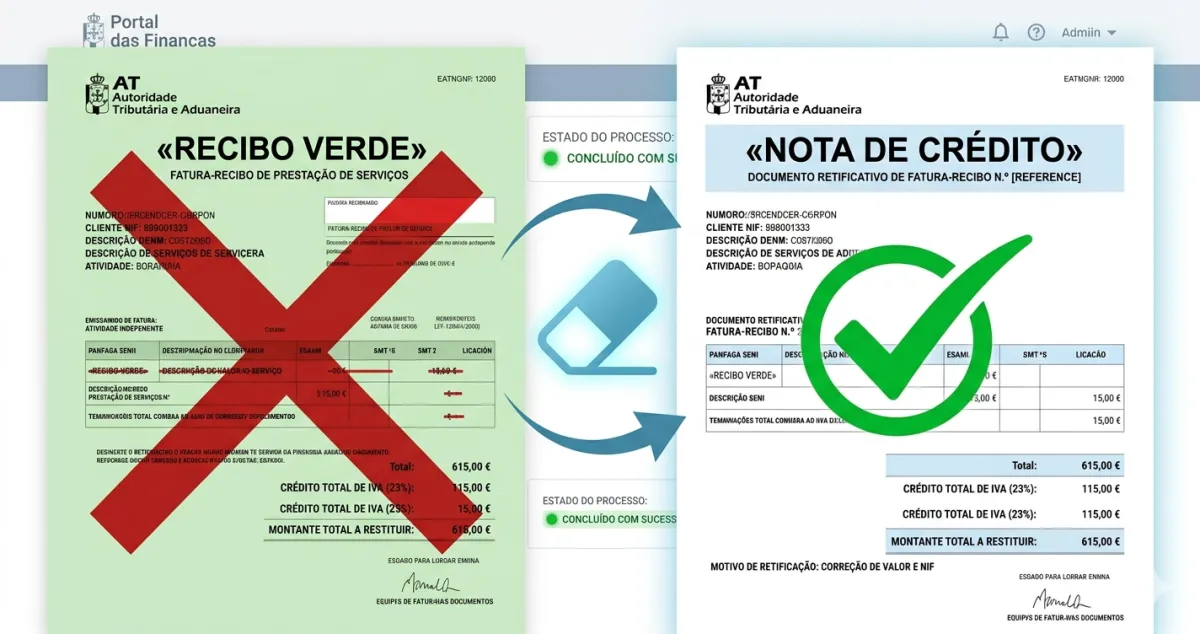
It happened yesterday to Sofia, a designer in Lisbon. She issued a recibo verde for €1,500 when it should have been €1,200. The client had already downloaded the PDF and paid via MB Way.
“What now?” — WhatsApp message at 11pm.
Take a breath. This is resolved in 5 minutes with a nota de crédito (credit note).
What is a nota de crédito?
A nota de crédito is essentially a “negative” document that cancels another document. Think of it as the Ctrl+Z of billing — it undoes what you did wrong.
In Sofia’s case: the €1,500 receipt stays on record, but the €300 nota de crédito cancels the excess. It’s as if you’d only issued €1,200 from the start.
Note the direction: a credit note is for when you charged too much. If you charged too little and need to bill the difference, that’s the opposite document — a debit note.
When do you need a nota de crédito?
Error in the amount (Sofia’s case)
- You issued €1,500 instead of €1,200
- You charged VAT when you shouldn’t have
- You applied the wrong VAT rate
Service cancellation
- The client pulled out after receiving the invoice
- The project was cancelled mid-way
Product returns
- If you sell physical products and the client returned them
- Defective products that were refunded
Wrong NIF, date or number? That’s not a credit-note case
A credit note adjusts the value of a transaction — it doesn’t edit identifying data. So a wrong NIF, date or document number is a different problem: the invoice went to the wrong entity (or carries an immutable field that can’t be changed).
The fix there is to cancel the document — the Anular function, while it’s still available — and issue a new invoice with the correct details. If the cancellation window has already closed, check the exact procedure with your accountant or the AT rather than assuming a note will fix it.
What you should never do
Never try to:
- Issue a new “correct” invoice without cancelling the wrong one first
- Ask the client to “ignore” the wrong invoice
- Modify a document that’s already been issued (it’s not possible, and if it were, it would be illegal)
- Leave months before correcting the error
Issued tax documents cannot be deleted or edited. To put things right you either Anular the document (while it’s still within the short cancellation window) or issue a nota de crédito that adjusts its value — and then issue a new, correct invoice if needed.
How to create a nota de crédito
Until recently, the Portal das Finanças had no credit-note option — to fix a receipt issued on the portal, you had to cancel it and issue a new one. Since 2026, the portal lets you issue the credit note directly (cancelling still exists too).
On the Portal das Finanças:
- Log in with your NIF and password
- Go to “Faturas e Recibos” > “Emitir” and choose “Nota de Crédito” — or open the receipt you want to fix and click “Emitir Nota de Crédito”
- Reference the original document (number and date)
- Fill in the amount to credit
- Choose the reason (it’s mandatory)
The portal makes you pick a reason from a list. The most common for a freelancer:
- Inaccuracy/reduction in the taxable amount — you corrected the service value (overcharged).
- Inaccuracy in the VAT amount (material error) — an arithmetic or summing mistake in the VAT.
- Inaccuracy in the VAT amount (legal rule) — you applied the wrong rate, or charged VAT when you were exempt.
- Goods return / Discount granted / Rappel discount — for those selling products or giving later discounts.
The process is a little slow — between logging in, waiting for the portal to load and filling everything in, you might spend 15 minutes.
Notas de crédito and VAT
If the original document included VAT, the nota de crédito must too. The calculation adjusts automatically in your next quarterly declaration.
Example:
- Original invoice: €1,000 + €230 VAT = €1,230
- Nota de crédito: -€1,000 - €230 VAT = -€1,230
- Result: zero
What if the client has already paid?
You have two options:
Return the difference — issue the nota de crédito and refund the excess by bank transfer.
Create credit for future services — issue the nota de crédito and the client keeps credit for the next job. Most clients prefer this option.
Timing matters
Golden rule: the sooner the better. If you issued an invoice today and spotted the error today, correct it today.
The longer you leave it, the more complicated it gets — especially if the error spans different quarters, which complicates VAT declarations.
Note: Correcting errors is completely normal. Everyone has issued at least one wrong document. The important thing is not to let them accumulate.
✅ In summary
-
Nota de crédito = Ctrl+Z of billing. Don’t try to “delete” or modify already-issued invoices — it’s not possible. The nota de crédito is the legal and correct mechanism for cancelling errors.
-
Fix it immediately, don’t let it drag on. The longer you wait, the more complicated it gets — especially if it crosses different tax quarters.
-
With FIZ you create notas de crédito in seconds — the system automatically references the original document, calculates the VAT, and adjusts your quarterly declarations without you having to do any maths.